

Legacy Support
EOS | HD®
With Wideband Technology
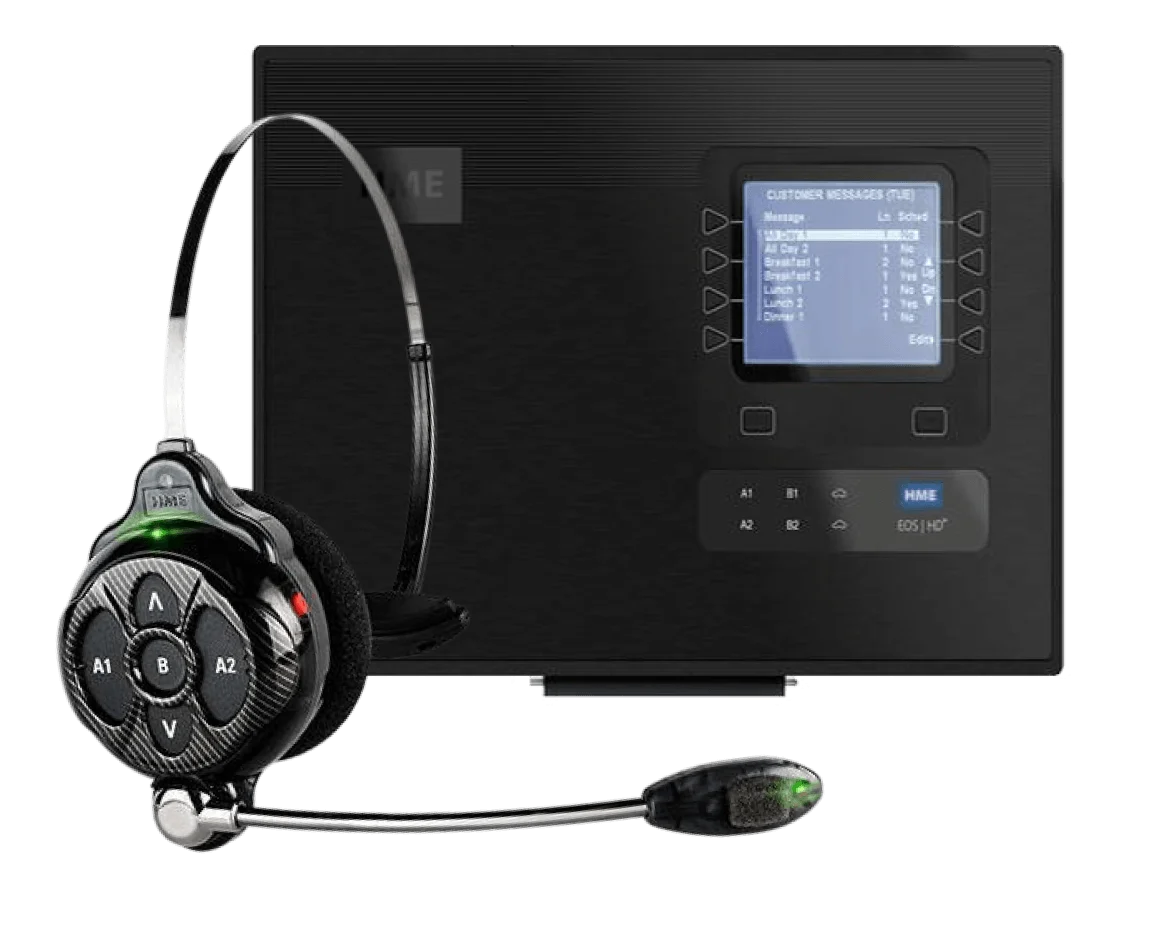
Verify that the base station has power by ensuring that the HME logo is illuminated in blue.
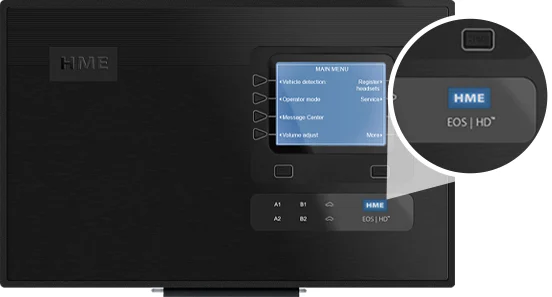
If the logo is not illuminated, ensure that the power for the base station is plugged into a working outlet.
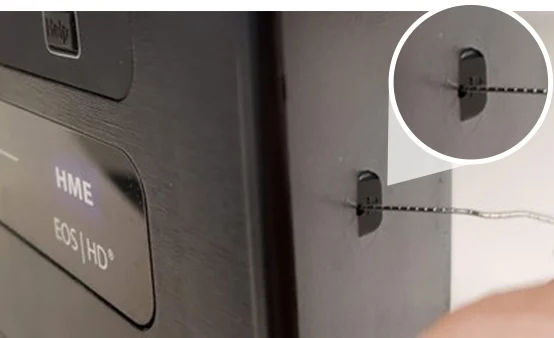
Gently insert a straight paperclip into the pinhole to reset. If successful, the headset system will reset and be back online.
If the previous step proves unsuccessful, open the base by pushing 2 small square buttons on the top of the base. It will open down like a briefcase.
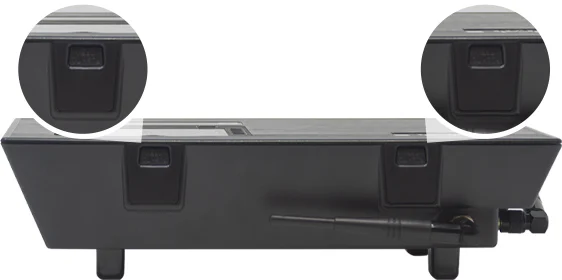
Once opened, locate the green 3-pinned POWER cable, and gently disconnect it.
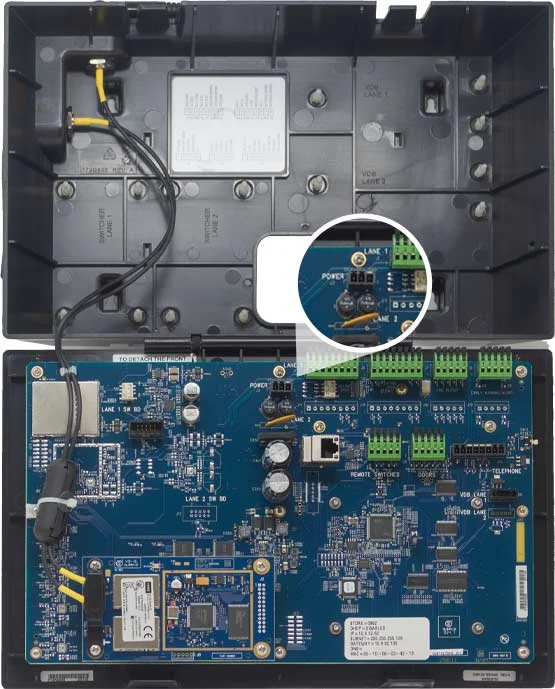
Ensure that the base station’s lights are off, then plug the POWER cable back in. The headset system will be back online.
If the previous step proves unsuccessful, push the BACK button until.
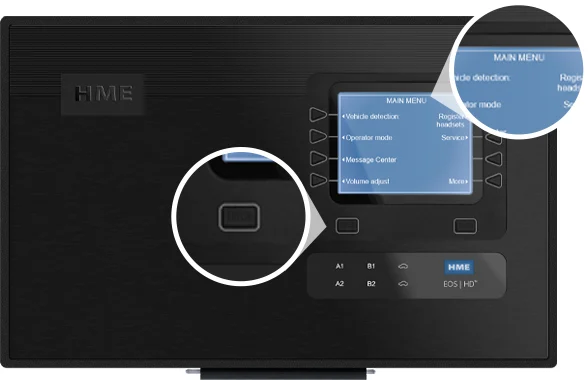
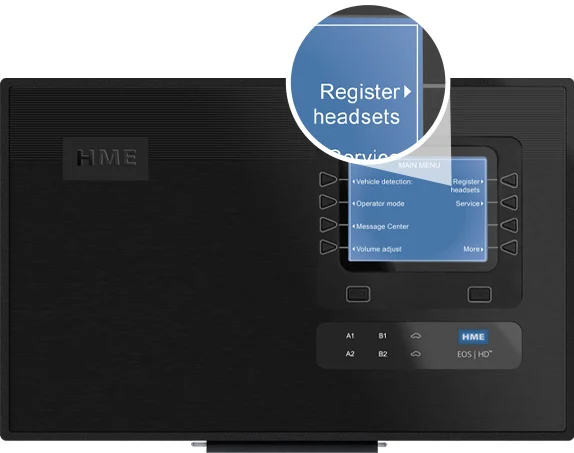
On base station, press any triangular button to illuminate home screen.
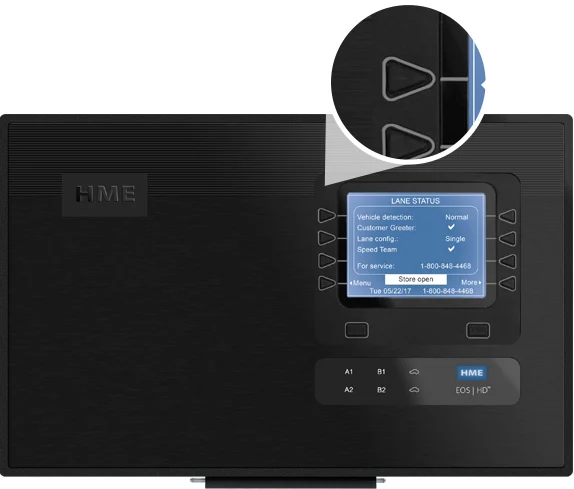
Press Menu button on lower left of screen.
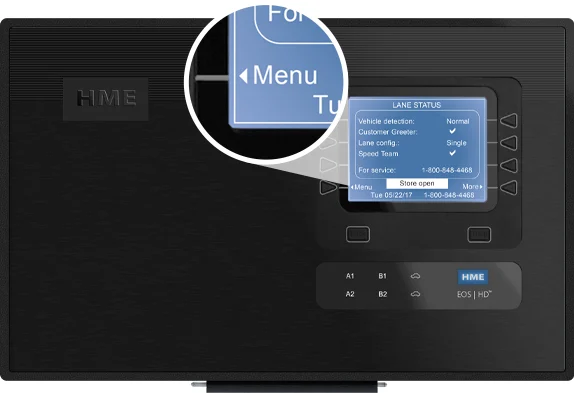
On MAIN MENU screen, press Register headsets button.
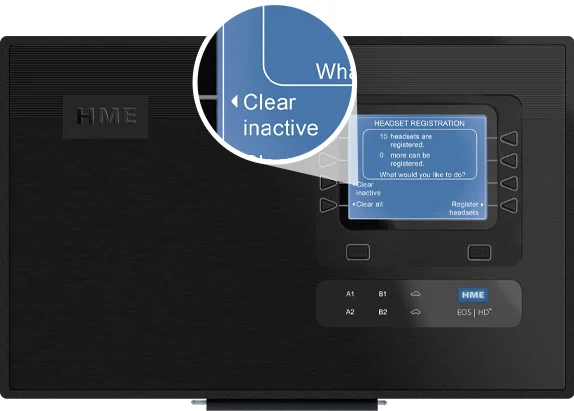
On HEADSET REGISTRATION screen, press Clear inactive button.
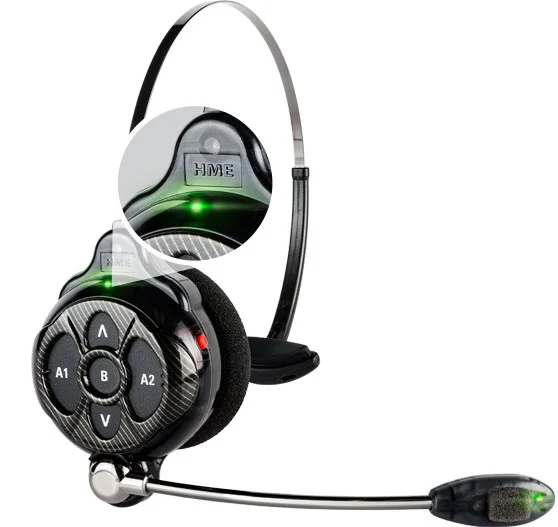
Turn on all headsets you do not want to inactivate.
Press Clear inactive button.
Press any triangular button on the base station to illuminate home screen.
Press Menu button on lower left of screen.
On MAIN MENU screen, press Register headsets button.
Note: that a maximum of 15 headsets or belt-pacs can be registered to the base station. If the maximum number is reached, the base station HEADSET REGISTRATION screen will indicate that 0 or more headsets can be registered. To register additional headsets, the inactive ones need to be cleared. To clear inactive headsets, refer to instructions at the bottom of this page.
Put the headset or belt-pac into registration mode:
- Power off headset or belt-pac by holding power button for three seconds.
- Press and hold power button for five seconds.
- On belt-pac, two red lights will flash next to A1 and A2 buttons.
Please note that the instructions on the base station TO REGISTER HEADSETS screen are an alternative way to put the headset or belt-pac into registration mode.
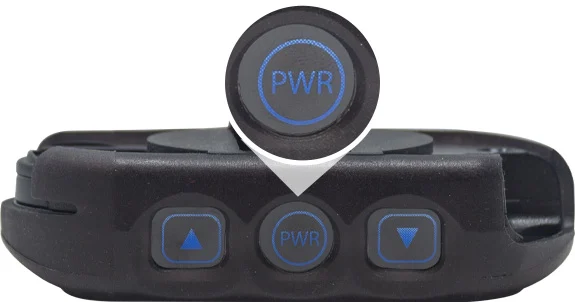
On belt-pac, two red lights will flash next to A1 and A2 buttons.
Please note that the instructions on the base station TO REGISTER HEADSETS screen are an alternative way to put the headset or belt-pac into registration mode.
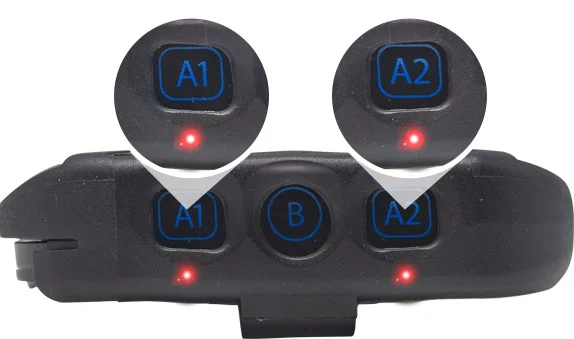
Complete registration on base station:
- On HEADSET REGISTRATION screen, press Register headsets button.
- If you are registering only one headset or belt-pac on TO REGISTER HEADSETS screen, press Register single button.
- If you are registering more than one headset or belt-pac, press Register multi button.
- Solid green light will appear on headset or belt-pac once registered and ID number will appear on base station screen.

With Power Off:
- Press A2 + ∇ + Power.
- Release buttons.
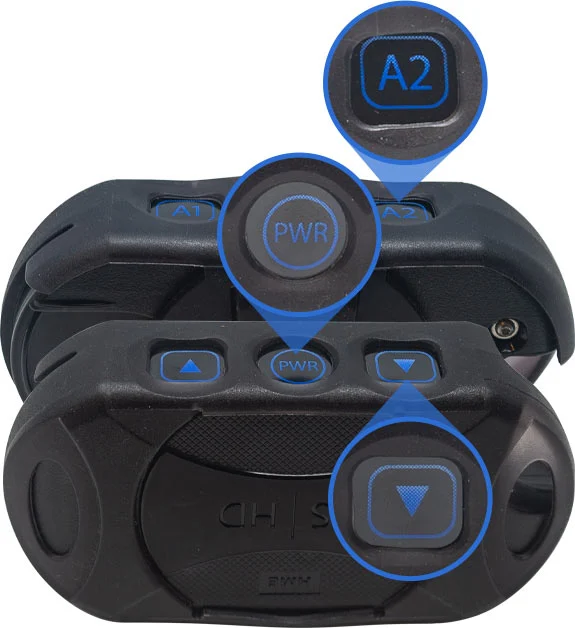
Voice prompt in headset will announce current operating mode.
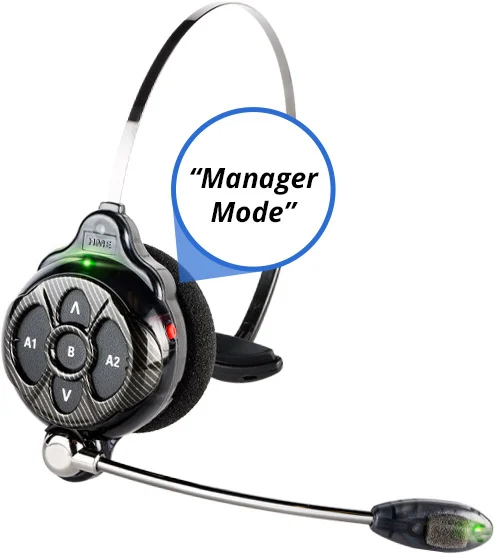
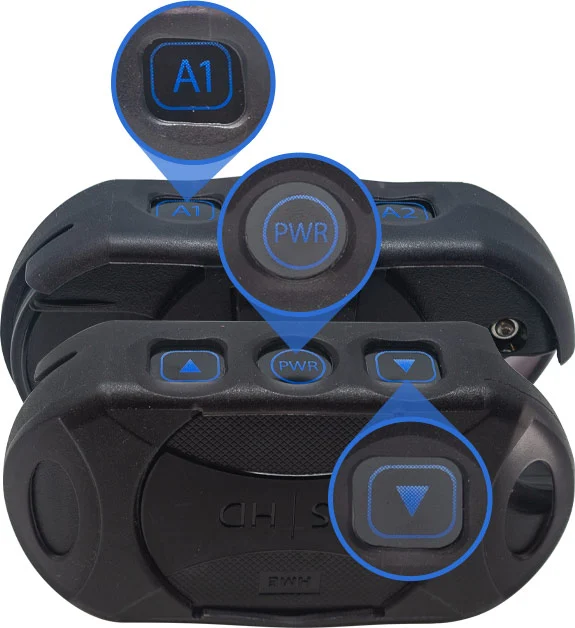
With Power Off:
- Press A1 + ∇ + Power.
- Listen for voice prompt in headset.
- Repeat steps to cycle through all languages.

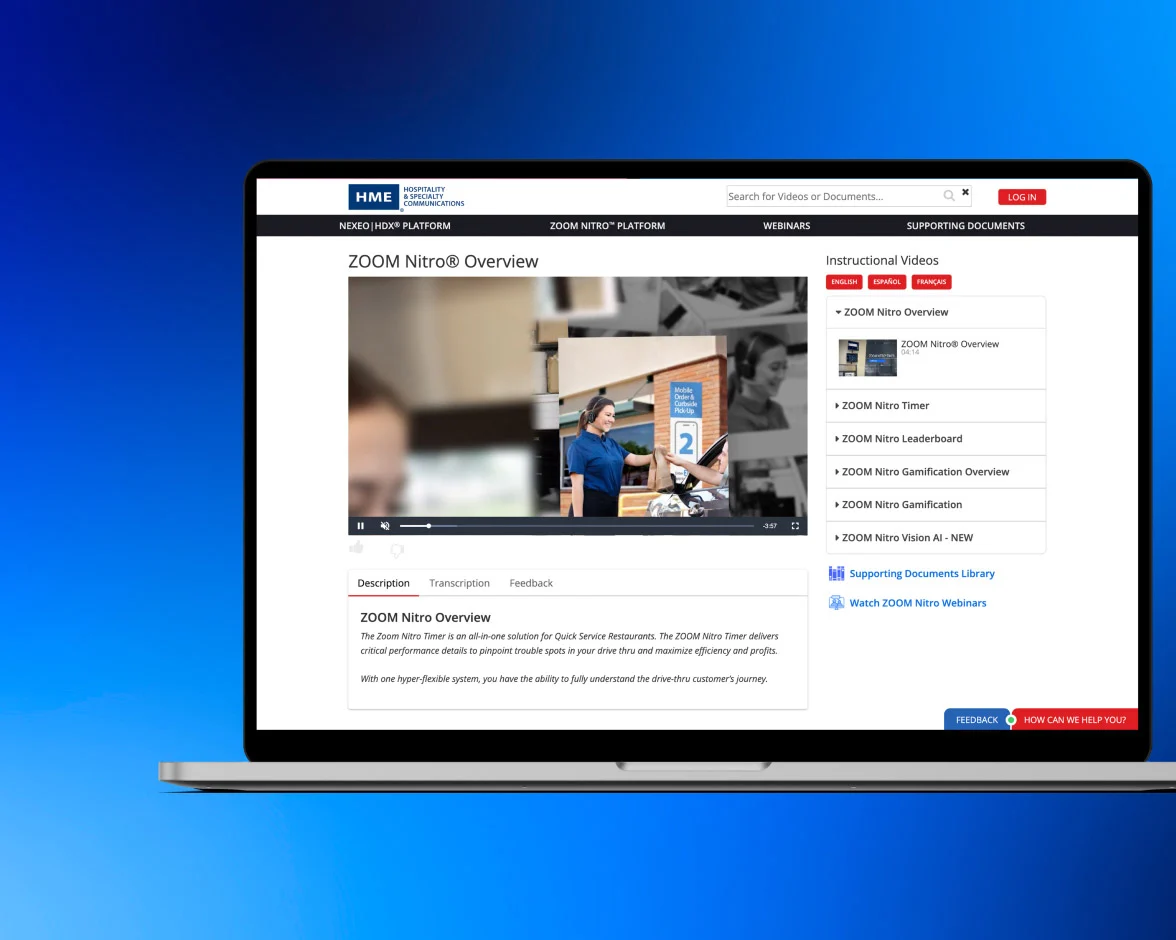
Video Tutorials and Guides
How to videos for common help topics, plus tips for getting the most out of your HME equipment.
Contact Us
Need Immediate Support?
We are available by live chat, phone, and email. Or fill out the form and we’ll call you at your convenience.
Hours of Operation
Monday – Friday | 5:00AM – 7:00PM PST
Saturday & Sunday | 7:00AM – 3:30PM PST
* indicates required fields